
The best WordPress robots.txt plugins are WP Robots Txt for a plain editing field and Better Robots.txt for guided rules, but both are optional because WordPress already serves a default file. WPOptimizers, a WordPress-focused agency, explains what each plugin changes and which rules can quietly remove a site from search.
2 Robots.txt Plugins and the Mistakes Behind Most Crawl Problems
A robots.txt file tells crawlers which paths to skip. It is tiny, public and easy to break, so one wrong line can hide an entire site. WPOptimizers compares two dedicated plugins below, then lists the rules that cause the most damage and the checks that prevent them.
Why One Line of Robots.txt Can Hide a Whole Site
The rule that does the most damage is a single slash after a disallow line, which tells every compliant crawler to skip everything. Plugins make editing easier, which also makes that mistake easier. WPOptimizers treats every robots.txt edit as a release, with a test before and after.
Staging sites often carry a block-everything rule that gets copied to production at launch. Rankings then fade over days, not minutes, so the cause is easy to miss. Reading the live file after every launch takes seconds and catches it.
What a Robots.txt Plugin Can and Cannot Control
A plugin edits the text that crawlers read, nothing more. Robots.txt rules are advisory, so well-behaved crawlers follow them and others can ignore them. WPOptimizers keeps this in mind because the file is a request, not a lock, and it should never be used to hide private content.
It also does not remove pages already indexed. A blocked page can still appear in results if other sites link to it, and a crawler that cannot fetch a page cannot see a noindex tag on it. The comparison further down shows which tool fits which job.
Robots.txt Editors Compared by Where You Edit and What They Limit
The table lists where each plugin lets you edit and the limit worth noting. Details come from each WordPress.org listing. WPOptimizers suggests reading the last column first, because a physical file in the site root overrides both plugins, which is the most common reason edits seem to do nothing.
| Plugin | Where you edit | Free limit or caveat |
| WP Robots Txt | A field on the Reading settings page | Physical robots.txt file overrides it |
| Better Robots.txt | A guided wizard with presets and a preview | Per-bot AI rules, custom agents and llms.txt are Pro |
| WordPress default | Virtual file, no editing screen | Nothing to edit without code or a plugin |
WP Robots Txt for a Plain Editing Field

WP Robots Txt adds one text field to the Reading settings page, so you edit the file without touching the server. It suits owners who know which lines they want. WPOptimizers sees it as the lightest option, and clearing the field restores the WordPress default.
The WordPress.org listing shows 40,000+ active installations and a 5 out of 5 rating from 21 reviews. It needs WordPress 5.3 and PHP 7.0 or higher, and version 1.3.6 adds a warning when a physical file will override it.
It also keeps saved rules when search engines are discouraged. The listing notes that discouraging search engines adds a noindex tag, not a disallow rule, so a block needs to be written yourself. One reviewer reported that edits did not update the file, so confirm the live result.
Better Robots.txt for Guided Rules and AI Crawler Policy
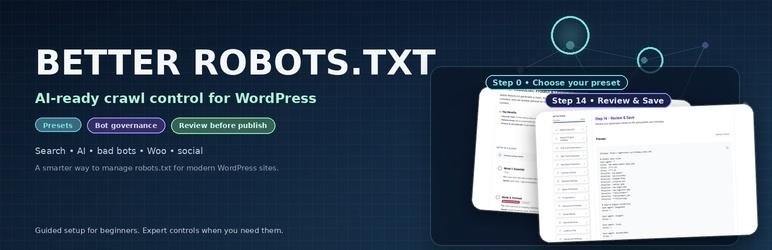
Better Robots.txt replaces free typing with a guided workflow and a preview before you publish. It offers Essential, AI-First, Fortress and Custom presets and covers search engines, AI training and AI search bots. WPOptimizers points to it for owners who want structure instead of raw text.
The listing shows 5,000+ active installations and a 4.5 out of 5 rating from 103 reviews, with nine one-star reviews. The free version includes guided setup, the Essential preset and a global AI search allow or block policy.
Pro adds per-bot AI crawler rules, custom user agents and llms.txt, while Premium adds the Fortress preset. The page states it is not a firewall, that bots may ignore rules and that user-action fetchers may not follow robots.txt the same way as crawlers. It needs WordPress 5.0 and PHP 7.4.
If Your SEO Plugin Might Already Cover This
Before installing anything, look at the SEO plugin already on the site. The Yoast SEO listing mentions crawl settings and free llms.txt management but does not describe a robots.txt editor, and the Rank Math listing does not mention one either. WPOptimizers checks each plugin’s own settings screens before adding another.
Two plugins writing the same file is a recipe for confusion. If an SEO plugin already controls crawling, adding a separate editor creates two sources of truth. The Rank Math and Yoast comparison covers what each suite handles.
Is Your Robots.txt Quietly Blocking Pages That Should Rank?
WPOptimizers runs WordPress SEO audits that read the live robots.txt, sitemap and indexing status together, so blocked pages are found before rankings slip.
Robots.txt, Noindex and Passwords Compared
These three tools are often confused. Robots.txt controls crawling, noindex controls indexing, and a password controls access. Using the wrong one is how private pages leak or public pages vanish. WPOptimizers uses the table below to pick the right tool before touching any file.
| Goal | Right tool | Why |
| Keep a page out of search results | Noindex tag | Crawler must be able to read the page |
| Save crawl effort on low-value paths | Robots.txt disallow | Advisory, not a security measure |
| Keep content private | Password or login | Robots.txt is public and can be ignored |
| Block unwanted AI crawlers | Robots.txt rules, plus server controls | Compliance is voluntary |
Five Steps to Edit Robots.txt Without Blocking Your Site
A safe edit takes five steps: read the live file, copy it somewhere, change one thing, test the result and recheck after caches clear. WPOptimizers follows this order because it keeps a working copy ready, so a bad change can be reversed in a minute.
- Open the live file at your domain followed by /robots.txt and save a copy.
- Check for a physical file in the site root, since it overrides plugin output.
- Change one rule at a time, and never add a lone slash disallow.
- Test key pages in Search Console to confirm they are still allowed.
- Recheck after a day and again after any launch or migration.
Want Crawl Rules Checked on Every Launch?
WPOptimizers offers WordPress maintenance plans from $49 per month, so launches, migrations and plugin updates get a crawl-rule check built in.
How WPOptimizers Reviews Crawl Rules
WPOptimizers is a WordPress-focused agency, WPOPTIMIZERS LLC, based in Ohio. Its technical SEO work treats robots.txt as a risk file: small, powerful and rarely reviewed. Audits compare what is blocked against what should rank, then flag mismatches with the sitemap.
AI crawlers add a new layer of rules, covered in the guide to blocking AI crawlers on WordPress. Crawl settings also connect to wider SEO content strategy, since pages that should rank need to stay crawlable.
Do I Need a Robots.txt Plugin?
Usually not. WordPress serves a default virtual file, and many sites never need to change it. A plugin helps when you want to add rules without server access or manage AI crawler policy. WPOptimizers advises confirming the default is wrong for your site before adding anything.
Why Are My Robots.txt Edits Not Showing?
A physical robots.txt file in the site root overrides the virtual one, so plugin edits never appear. Caching layers and a CDN can also serve an old copy. WPOptimizers deletes or renames the physical file only after saving it, then clears caches and rereads the live address.
Can Robots.txt Remove a Page From Google?
No. It controls crawling, not indexing, and a blocked page can still show in results through links from elsewhere. To remove a page, use a noindex tag and let crawlers read it. WPOptimizers also checks that no disallow rule hides the tag from crawlers.
Does Robots.txt Stop AI Bots?
Only compliant ones. Better Robots.txt states that robots.txt is a voluntary standard and that user-action fetchers may not follow it the same way as automated crawlers. Servers and firewalls enforce limits better. WPOptimizers treats the file as a polite request and adds server-level controls where it matters.
What Should I Put in Robots.txt for WooCommerce?
Keep cart, checkout and account paths out of crawling, and leave product and category pages open. Faceted filter URLs often waste crawl effort. Better Robots.txt lists WooCommerce crawl cleanup as a feature. WPOptimizers reviews store URLs first, then writes the smallest rule set that works.
How Do I Test My Robots.txt File?
Open the live address, then use Search Console’s robots.txt report to see what Google fetched and whether key pages are allowed. Test again after launches. WPOptimizers also spot-checks important URLs by hand, because a report can lag behind a fresh edit.
Crawl Rules to Keep in Mind
Keep these rules next to your launch checklist so each robots.txt change follows the same checks. WPOptimizers drew the plugin facts from the WordPress.org listings cited above, which you can read for current limits before installing anything or changing a live file.
- Robots.txt is advisory and public.
- A physical file overrides plugin edits.
- Discouraging search engines adds noindex, not a disallow rule.
- Never publish a lone slash disallow on a live site.
- Use noindex to keep pages out of results.
- Use a password for anything private.
- Reread the live file after every launch.
Edit Less and Check More
The best robots.txt setup is short, readable and tested. Choose a plain editor if you know your rules or a guided one if you want presets, and confirm the live file every time. For crawl audits and ongoing care, WPOptimizers maintains WordPress sites on fixed-price plans.