
Disclosure: This post contains affiliate links to Semrush. I may earn a commission or receive a reward from Semrush if you sign up, at no extra cost to you.
You can have great content, strong rankings, and a clean site, and still be invisible in AI search. The reason is often boring: your site is turning AI crawlers away at the door.
This happens a lot on WordPress. A security plugin, a CDN setting, a host-level firewall, or a robots.txt rule from three years ago can block bots you never meant to block. If ChatGPT, Claude, or other AI tools cannot fetch your pages, they cannot cite you.
In this guide, I’ll show you how to find out if this is happening to you and how to fix it without opening your site to every scraper on the internet.
To make this practical, I will show you how to check it with the Semrush Site Audit tool, which includes a dedicated Blocked from AI Search check, and how to keep monitoring your site with the Semrush SEO Toolkit. You can follow along with Semrush Site Audit here.
Why this matters now
More people now get answers directly from AI tools, and those tools build answers from pages they can access. If a crawler is blocked, your content simply does not exist for that tool. You do not get a warning. You just never show up.
The good news is that this is one of the few AI visibility problems that is fully in your control.
The fastest way to find the problem: Semrush Site Audit
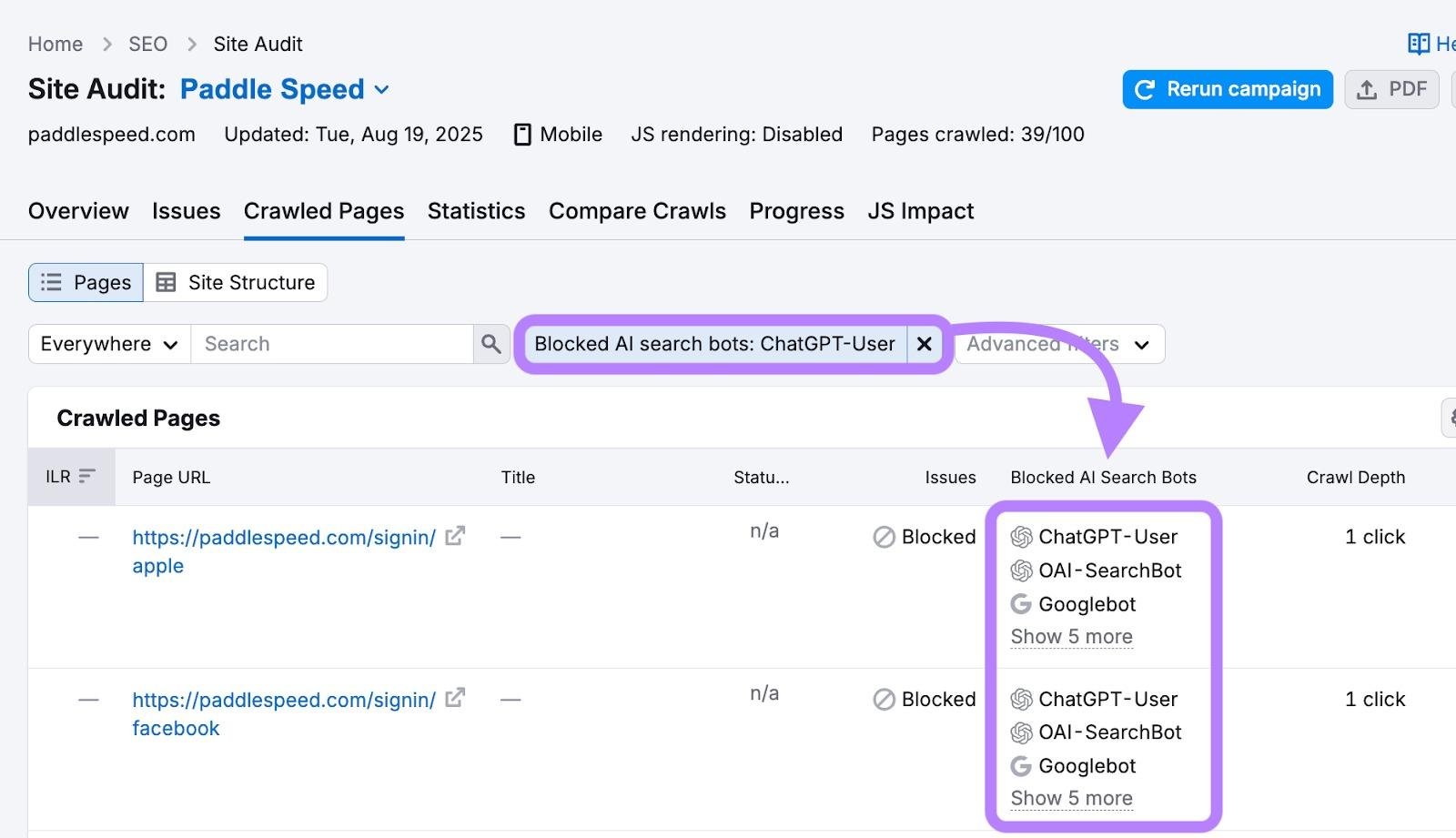
Checking robots.txt by hand works for one site. For client sites, or any site where several plugins can edit the rules, I use Semrush Site Audit. Its Blocked from AI Search check reads your robots.txt file and lists which AI crawlers are blocked from which pages.
Here is how I use it:
- Add your domain as a project in Semrush and run a Site Audit.
- Open the audit results and find the Blocked from AI Search check.
- Review which crawlers are listed. Search crawlers such as OAI-SearchBot should not appear as blocked unless you chose that on purpose.
- Remember that Google-Extended is on the check’s list, so it will show as blocked if you deliberately turned off AI training.
- Fix your rules, then re-run the audit to confirm the change.
It takes a few minutes and shows you what a manual check can easily miss. Run your own AI crawler check with Semrush.
Not all AI bots are the same
The biggest mistake I see is treating "AI bots" as one group. They are not. Each company runs several crawlers with different jobs:
| Type | Examples | What it does | Should you block it? |
|---|---|---|---|
| Training crawlers | GPTBot (OpenAI), ClaudeBot (Anthropic), Google-Extended | Collect content to train models | Your choice. It does not affect search visibility directly. |
| Search crawlers | OAI-SearchBot (OpenAI), Claude-SearchBot (Anthropic) | Index pages so they can appear as sources in AI search answers | Usually allow. Blocking removes you from those answers. |
| User-triggered fetchers | ChatGPT-User, Claude-User | Fetch a page when a person asks the AI about it | Usually allow. |
The crucial point: blocking GPTBot does not block OAI-SearchBot, and the reverse is also true. They are separate user agents. Many site owners block the training bot for content-protection reasons, which is a reasonable choice, but then accidentally block the search bot too.
The 4 most common ways WordPress sites block AI crawlers by accident
1. A broad robots.txt rule. A rule like User-agent: * / Disallow: / or an overly aggressive AI-blocking snippet copied from a tutorial can shut out every bot, including the ones that send you citations.
2. Security plugins and firewalls. Bot-protection features in security plugins and WAFs often block anything they do not recognize. A "block unknown bots" rule written years ago will catch crawlers that did not exist when it was created.
3. CDN defaults. Cloudflare, for example, now blocks known AI crawlers by default on new domains. That may be what you want, or it may not be. Either way, it should be a decision you made on purpose, not a surprise.
4. Host-level rules. Some managed WordPress hosts apply bot rules at the platform edge, below your plugins. Some hosts have been reported to return a 429 (too many requests) response to AI crawlers such as GPTBot and ClaudeBot. Your robots.txt can look perfect while the server refuses the request anyway.
That last point is why checking only your robots.txt file is not enough. A robots.txt file says what you ask bots to do. Your firewall decides what actually happens.
Step 1: Check your robots.txt
Open yourdomain.com/robots.txt in a browser. Look for:
User-agent: *followed byDisallow: /- Any lines naming OAI-SearchBot, Claude-SearchBot, ChatGPT-User, or Claude-User with
Disallow - Rules added by plugins (SEO plugins, security plugins, and "AI blocker" plugins can all edit this file)
If you use a WordPress SEO plugin, you can usually edit robots.txt from its settings. If no physical file exists, WordPress generates a virtual one, so check the plugin or your theme’s code for filters that modify it.
Step 2: Check what your server actually does
This is the step most people skip. You can test how your site responds to a crawler’s user agent with a simple command:
curl -I -A "OAI-SearchBot" https://yourdomain.com/Then repeat with GPTBot, ClaudeBot, and Claude-SearchBot. Compare the results with a normal request.
- 200 means the page was served.
- 403 means your server or firewall blocked it.
- 429 means it was rate limited.
- A challenge page (a CAPTCHA or JavaScript check) means a bot-protection layer is intercepting the request.
One caution: some firewalls verify bots by IP address, not just user agent, so a test from your laptop may not behave exactly like the real crawler. Treat this as a strong hint, then confirm in your CDN or firewall logs.
Step 3: Run an automated check
If you manage more than a couple of sites, doing this by hand gets old fast. The Site Audit tool in the Semrush toolkit has a "Blocked from AI Search" check that reads your robots.txt and lists which AI crawlers are blocked from which pages. Search crawlers such as OAI-SearchBot should not appear as blocked unless you chose that on purpose.
If you want to run it on your own site, you can start with Semrush Site Audit here.
Step 4: Decide your policy, then write it down
Before you change anything, decide what you actually want. Most WordPress business sites fall into one of two camps:
- "I want visibility." Allow search crawlers and user-triggered fetchers. Decide separately about training crawlers.
- "I want to protect my content." Block training crawlers, but understand the trade-off if you also block the search ones.
Here is a sample robots.txt that blocks training crawlers but keeps AI search crawlers allowed:
# Block AI training crawlers
User-agent: GPTBot
Disallow: /

User-agent: ClaudeBot
Disallow: /

User-agent: Google-Extended
Disallow: /

# Allow AI search and user-triggered crawlers
User-agent: OAI-SearchBot
Allow: /

User-agent: Claude-SearchBot
Allow: /

User-agent: ChatGPT-User
Allow: /

User-agent: Claude-User
Allow: /
This is only an example. Adjust it to your own goals, and keep your existing rules for wp-admin and any private areas.
Step 5: Fix the layers above robots.txt
After robots.txt is correct, check the other layers in this order:
- Security plugin settings: Review bot-blocking and rate-limiting options. Allow-list the search crawlers you want.
- CDN settings: In Cloudflare or similar, review AI crawler settings and any managed robots.txt feature so they match your policy.
- Host firewall: If the curl test shows 403 or 429 but your plugins look fine, ask your host whether bot rules apply at the platform level.
- Caching: Clear caches after every change, including the ones from your WordPress speed optimization plugin, then fetch the live robots.txt again to confirm the update is visible.
Step 6: Re-test and monitor
Run the curl tests again and re-run your audit. Then check back monthly. Plugins update, hosts change defaults, and new bots appear, so a rule that was fine last year can quietly turn into a problem.
Keep monitoring with Semrush
AI crawler access is not a one-time fix. Plugins update, hosts change defaults, and new bots appear. I schedule recurring Site Audits in Semrush so I get a fresh check without remembering to do it, and I use Position Tracking in the SEO Toolkit to confirm that my search visibility stays healthy after any change to bot rules.
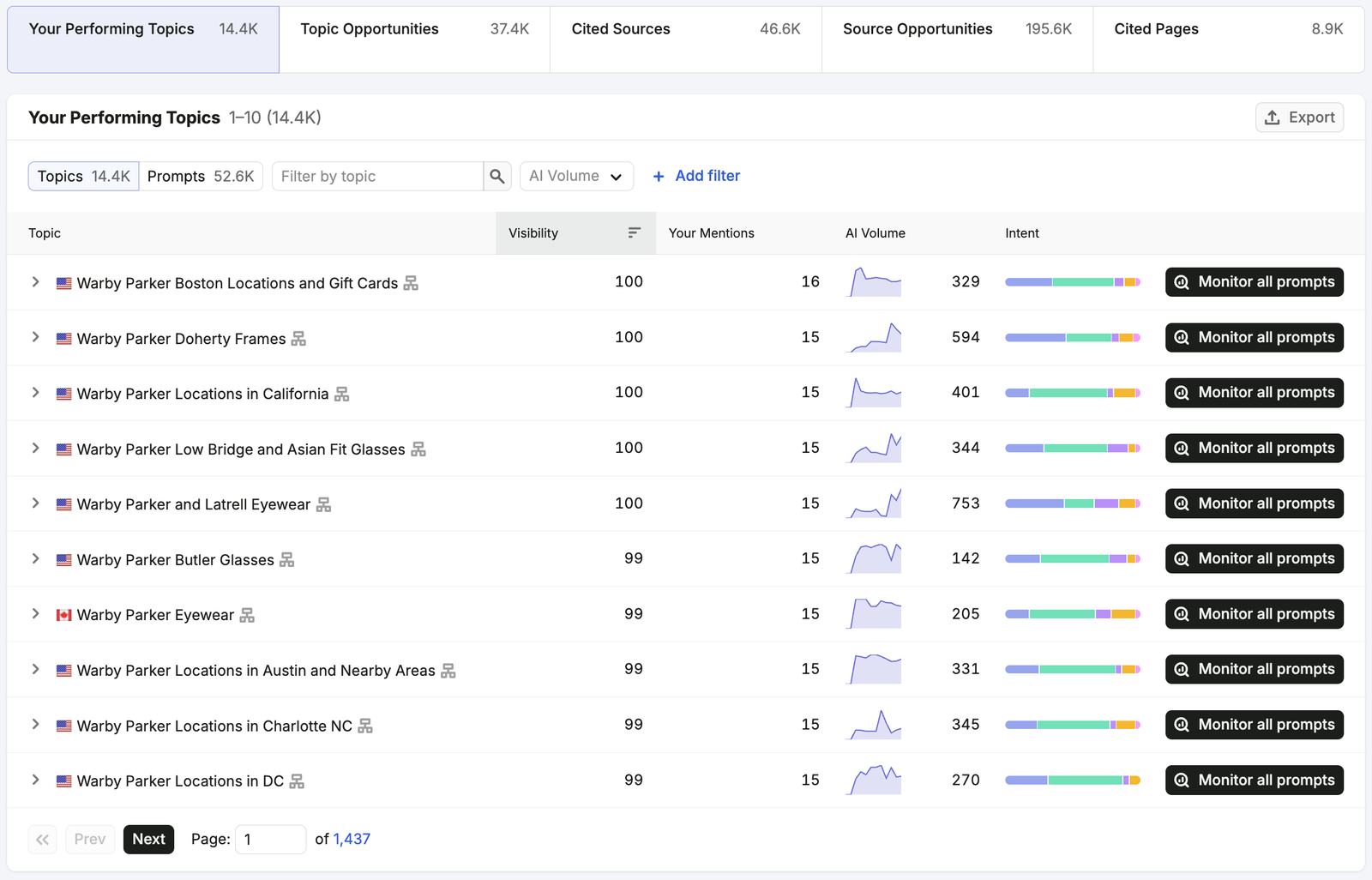
If you also want to see whether your brand is actually being mentioned in AI answers once the crawlers can reach you, the Semrush AI Visibility Toolkit is built for that. You can explore the AI Visibility Toolkit through my link here.
Quick checklist
- ☐ Open robots.txt and look for broad or accidental Disallow rules
- ☐ Separate training crawlers from search and user-triggered crawlers
- ☐ Test responses with curl for each bot name
- ☐ Check security plugin, CDN, and host firewall settings
- ☐ Decide your policy on purpose and document it
- ☐ Clear caches and re-test
- ☐ Re-check monthly
Final thoughts
Blocking AI crawlers can be a perfectly valid choice. Doing it by accident is not. Make the decision deliberately, then verify that your server actually behaves the way your robots.txt says.
To keep an eye on this over time, along with the rest of your technical SEO, the Semrush SEO Toolkit makes recurring audits easy. You can try it through my link here.
If you would like someone to review your WordPress site’s bot rules, security setup, and technical SEO, you can contact me at WPOptimizers.com.