
When I first started my WordPress website, I loved adding lots of images—blog post photos, banners, infographics, and logos. But soon, I noticed a problem. Even though I was using WPOptimizers – Image Optimizer Lite to compress and optimize my images, I couldn’t easily tell which images were already optimized and which were not. Sometimes I would accidentally optimize the same image twice, wasting time. Other times, I missed images that slowed down my website.
This small issue became frustrating because having too many unoptimized images affected my site speed, visitor experience, and SEO. That’s when I discovered the Media Library Badge feature in WPOptimizers, and it completely changed how I manage images.
Why Tracking Optimized Images Is Important for Me
For me, website speed is very important. I want visitors to enjoy smooth and fast pages without waiting for large images to load. But with hundreds of images on my website, it was impossible to remember which images were already optimized.
The Media Library Badge solved this problem. Now, I can see at a glance which images are ready and which need optimization. It helped me save time, reduce mistakes, and make sure my website stays fast and professional.
How the Media Library Badge Works
Using the Media Library Badge in WPOptimizers is very simple and visual. Here’s how it works for me:
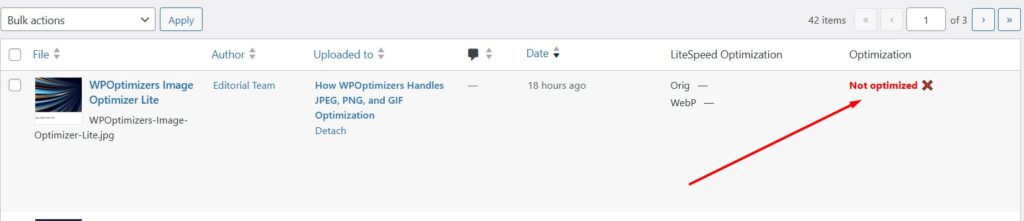
- When I open the WordPress Media Library, I see colored badges on each image.
- Green badge means the image is fully optimized.
- Orange or red badge shows the image needs optimization or re-optimization.
- I can click on the badge or use the bulk optimization option to optimize multiple images at once.
This system made image management easy. I no longer have to open each image to check its status or guess if it is optimized.
How I Use the Badge for New and Old Images
One of my favorite things about the Media Library Badge is how it works with both new and old images.
- For new images, I enable automatic optimization in WPOptimizers. Once uploaded, the badge updates automatically to show the image is optimized.
- For old images in my library, I can quickly scan the badges and optimize any images that still need it.
This way, I can keep my entire library clean and organized without spending hours manually checking each image.
How It Helps Beginners Like Me
As a beginner, this feature is very helpful. At first, I was worried I would make mistakes while optimizing images, or forget to optimize some images. The badge system gives me confidence. I know exactly which images need attention, which saves time and reduces stress.
It also helps prevent duplicate work. Before the badge, I would sometimes optimize the same images twice, thinking they were not ready. Now, with a visual indicator, I avoid this mistake completely.
How It Improves Website Speed and SEO
Optimized images are smaller in size but still look clear. This makes pages load faster, which is good for visitors and search engines. With the Media Library Badge, I can ensure all my images are optimized. My website feels faster, my bounce rate has gone down, and my Google PageSpeed scores improved.
Using the badge also helps me maintain high-quality images across the site. I know every image looks good, whether it is a JPEG, PNG, or GIF.
Extra Tips I Learned From Using the Badge
From my experience, here are some tips for beginners using WPOptimizers Media Library Badge:
- Use the badge to quickly identify unoptimized images in bulk.
- Enable automatic optimization for new uploads.
- Check the badges before publishing posts to ensure all images are optimized.
- Keep descriptive file names for SEO while using the badge for status tracking.
- Combine the badge with lazy loading to make pages faster.
Following these steps made a big difference in how I manage my images. My workflow became easier, and my website performance improved.
Why I Recommend WPOptimizers Media Library Badge
The Media Library Badge may seem like a small feature, but it has a huge impact. It saves time, reduces errors, and ensures all images are optimized without losing quality. For beginners, it removes the guesswork from image optimization and gives a clear, visual way to track progress.
Since I started using this feature, managing images became fun rather than stressful. My pages load faster, images look great, and visitors have a better experience. For anyone using WordPress and WPOptimizers, the Media Library Badge is a must-have tool.
My Final Thoughts
Learning to use the Media Library Badge in WPOptimizers completely changed the way I manage images. I don’t have to worry about missing images or doing extra work. Everything is visual, clear, and beginner-friendly. If you want an easier, smarter way to track optimized images, I highly recommend trying this feature. It keeps your website fast, your images clear, and your workflow simple.